
How to Customize Cabin and Add Interior Accessories in Truckers of Europe 3
This explains how to use truck accessories, how to install them on the truck, what each accessory does, and how much money is required for full modification. Here, everything will be explained. Some accessories require gold, and gold is earned by completing levels.
Cabin Interior Customization
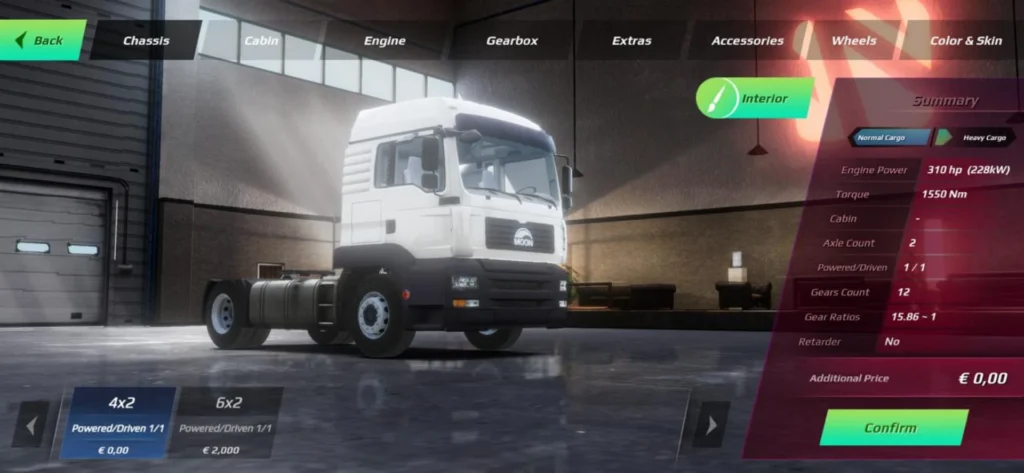
To customize the interior, open Trucks, select the truck you want to modify, and click Configure. This takes you to the truck customization screen, where the Interior option appears at the top. Clicking on Interior opens the cabin interior customization area. Here, you will see five sections: Texture, Details, Lights, Accessories, and Presets. Each section lets you customize a specific part of the cabin interior.
Textures Customization
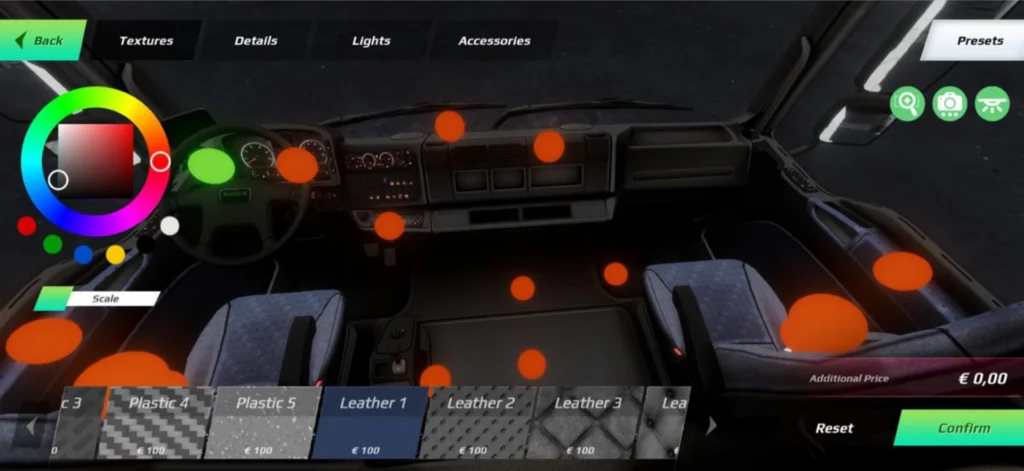
When you enter the Texture section, red dots appear inside the cabin. Clicking on a red dot allows you to customize that specific area.
- Each red dot represents a specific interior area.
- You can customize the upper interior, steering wheel, and leather panels.
- The dashboard plastic, floor carpet, and seats can also be customized.
- A scale option appears below the color selection for each texture. Reducing the scale makes the design finer, while increasing it makes it thicker.
Details Customization
In the Details section, you can change the color of the dashboard buttons according to your preference. From here, you can also adjust the border color of the carpet located under the truck seats. On the right side, you will see three icons. The first icon has a plus symbol. Holding this icon allows you to zoom in, making it easier to view dashboard buttons and the carpet border more clearly. The second icon is a camera, which lets you view the front of the truck from three different angles, so you can check your customization from multiple views. The last icon controls the cabin lighting, allowing you to turn the cabin lights on or off.
Lights Customization
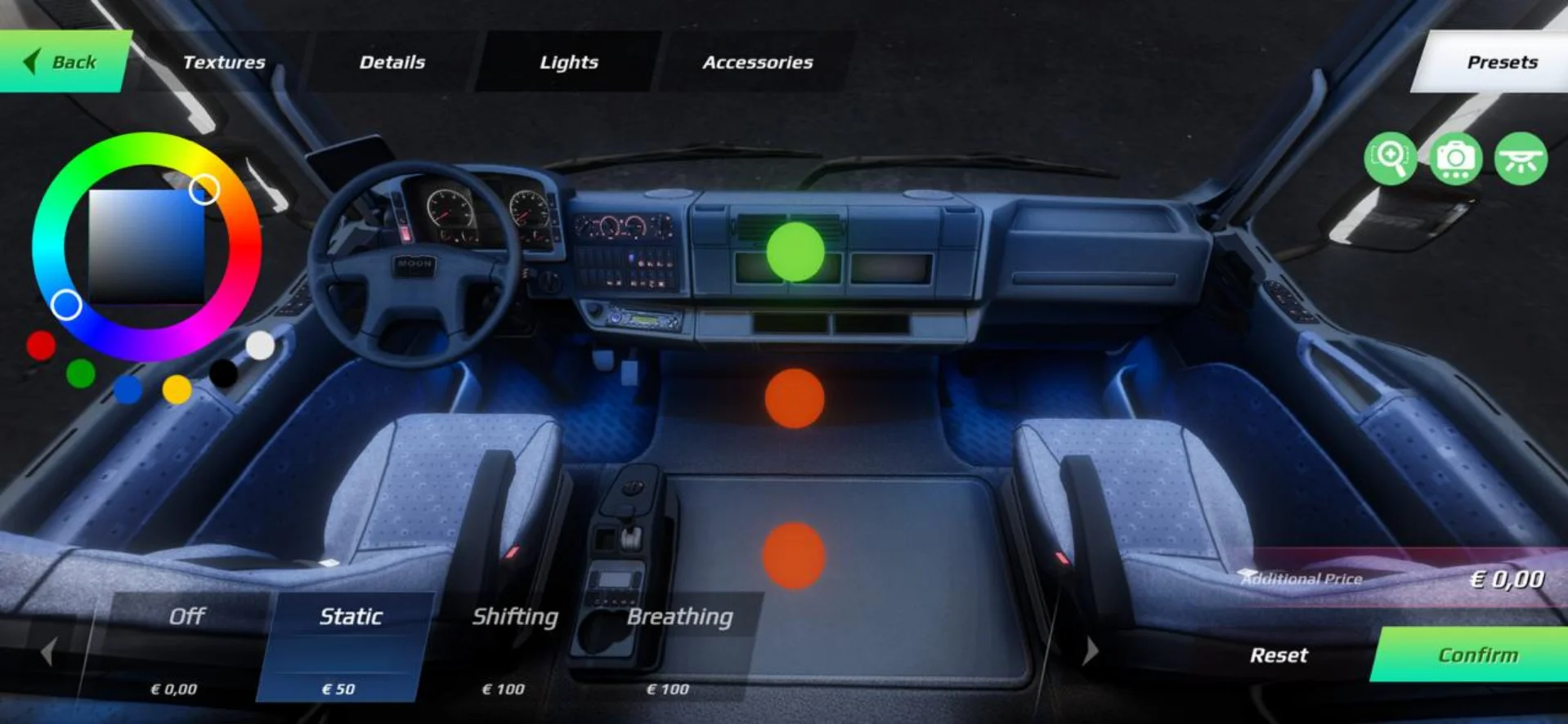
When you open the Lights section, three red dots appear at the front of the cabin. Each red dot controls a different cabin light, letting you adjust the lighting based on your preference.
Main Cabin Lighting (First Red Dot)
Clicking on the first red dot turns on the main cabin lighting. From here, you can change the light color according to your preference.
You can choose from three lighting modes:
- Static: The light stays on a single color and does not change.
- Shifting: The light color changes automatically over time.
- Breathing: The brightness goes up and down while the color remains the same, creating a soft breathing effect.
Ambient Lighting (Second Red Dot)
The second red dot controls the ambient lighting in the lower cabin area near the accelerator and pedals, and it follows the same lighting modes as the main cabin light.
Cabin Roof Light (Third Red Dot)
The third red dot controls the cabin roof light, which is located above the driver’s seat. This light can also be adjusted according to your preference, just like the other cabin lights.
Accessories Customization
When you open the Accessories section and select Any, you will see several red dots inside the truck cabin. These red dots indicate places where accessories can be installed.
Front Windshield Hanging Accessories
On the front windshield red dots, you can add:
- Hanging dice
- Other hanging ornaments
- A dog accessory
All these items move while the truck is driving, which makes the cabin feel more realistic. After installing an accessory, the red dot disappears. If you click on Accessories again, the red dots will reappear. You can place up to three hanging items on the front windshield.
Curtain Customization (Front & Side Windows)
You can install curtains on the front windshield:
- Change curtain colors
- Add ornaments or decorative borders on the curtain
Side windows also have red dots where you can:
- Add side curtains
- Apply ornaments or designs
Front and side curtains can be customized separately.
Seats & Interior Accessories
Inside the cabin, you can install:
- A TV above the front passenger seat
- Another TV behind the driver seat
- A small table near the cabin
- Space for mobile and wallet
- Bags behind the driver seat
Pillar, Steering & Utility Accessories
On the cabin pillars, you can add:
- Phone holder
- GPS system (shows your location)
- Steering knob for better control
Upper Cabin Customization
In the upper cabin area, you can:
- Install a large cabin table
- Add a cabin cover
- Apply ornaments on the cabin cover
On the cabin table, you can place:
- Emojis
- Glasses
- Watch
- Country flags
- Rotate accessories
- Change the border color of the cabin table
Accessories Pricing & Discount
- Each selected accessory shows its price instantly
- Accessories are not very expensive
- With full customization, the total cost can reach around €5000
- Watching an ad gives you a 30% discount
- The discount is applied before final confirmation
To earn more money for cabin upgrades, check out our guide on best ownable trailers for high income jobs.
Cabin Lights System
After starting the game:
- Tap on the three-dot menu icon at the top
- Select Cabin Light
On the right side, you will see three light options:
- Front windshield cabin light
- Driver seat upper light
- Ambient cabin light
You can turn these lights ON or OFF directly during gameplay.
For better interior visuals and smoother lighting effects, you should also use the best graphics settings.
Final Notes
Accessories customization allows you to:
- Fully personalize your truck cabin
- Enjoy realistic movement and lighting
- Get a premium cabin look at a low cost